
Two-way sync and review changes
Two-way sync lets you edit your store from Airtable. It’s on the Starter plan and up. Every edit waits for your approval unless you set up auto-approve rules (Premium).
Turn on two-way sync
Section titled “Turn on two-way sync”- Open Data, choose a kind of data and stay on its Sync tab.
- Under Sync direction, choose Two-way. Every field you can edit turns two-way. Fields Shopify sets, such as Created, stay Shopify → Airtable.
- In Field mapping, change one field’s Rule, or use Set all editable fields to for all of them. Don’t sync leaves a field out.
When both sides change
Section titled “When both sides change”If both sides change decides what happens when a field is edited in Shopify and in Airtable before the next sync:
- Ask me: the change waits on Review changes as a conflict.
- Shopify wins: Shopify’s value is kept and copied back to Airtable.
- Airtable wins: Airtable’s value is sent to Shopify.
Review changes
Section titled “Review changes”Edits to two-way fields in Airtable wait on Review changes. Home tells you how many are waiting and opens the page.
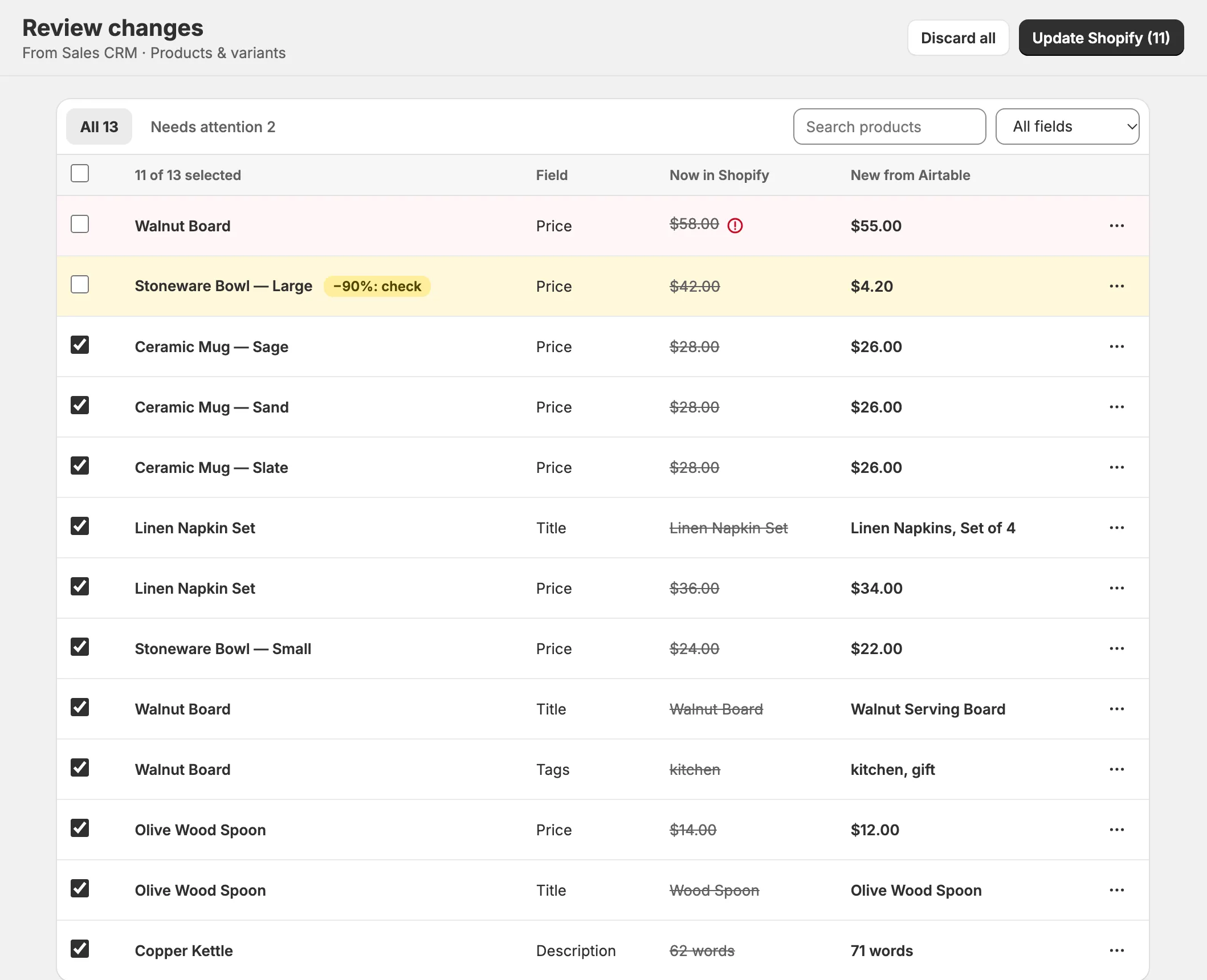
- Each row shows the record and field, the value in Shopify now and the new value from Airtable. Tabs show conflicts, held changes, prices and text edits.
- Tick the rows you want and click Update Shopify. Keep Shopify value turns an edit down.
- Held and conflict rows are never ticked for you. A row Shopify would refuse says why and can’t be approved.
Every update is listed in History, and you can undo it for 7 days.
On a sync’s Safety tab you can hold changes that look wrong. Held changes always wait on Review changes, even with auto-approve on:
- Hold price drops larger than this percentage.
- Hold bulk edits of more than this many records.
- Block negative stock. Gridora never writes stock below zero.
Auto-approve rules
Section titled “Auto-approve rules”On Premium and up, trusted edits can go to Shopify without waiting for you:
- On the sync’s Schedule tab, set Airtable to Shopify to Straight away.
- On its Safety tab, pick Auto-approve rules: price changes under 10%, or text-only edits such as title, description and tags.
Edits that don’t match a rule, and anything held, still wait on Review changes.
Send the whole table
Section titled “Send the whole table”Send the whole table on the Schedule tab sends every row of the table to Shopify once (Starter and up). Rows that differ from Shopify go through review and holds before Shopify changes.