Getting started
Gridora works on every plan, including Free. This guide gets your store into Airtable; the next guides cover editing it from there.
-
Install Gridora from the Shopify App Store. It opens inside your Shopify admin.
-
Pick a plan. Start on Free, or try Starter, Premium or Enterprise free for 14 days. See Plans and limits.
-
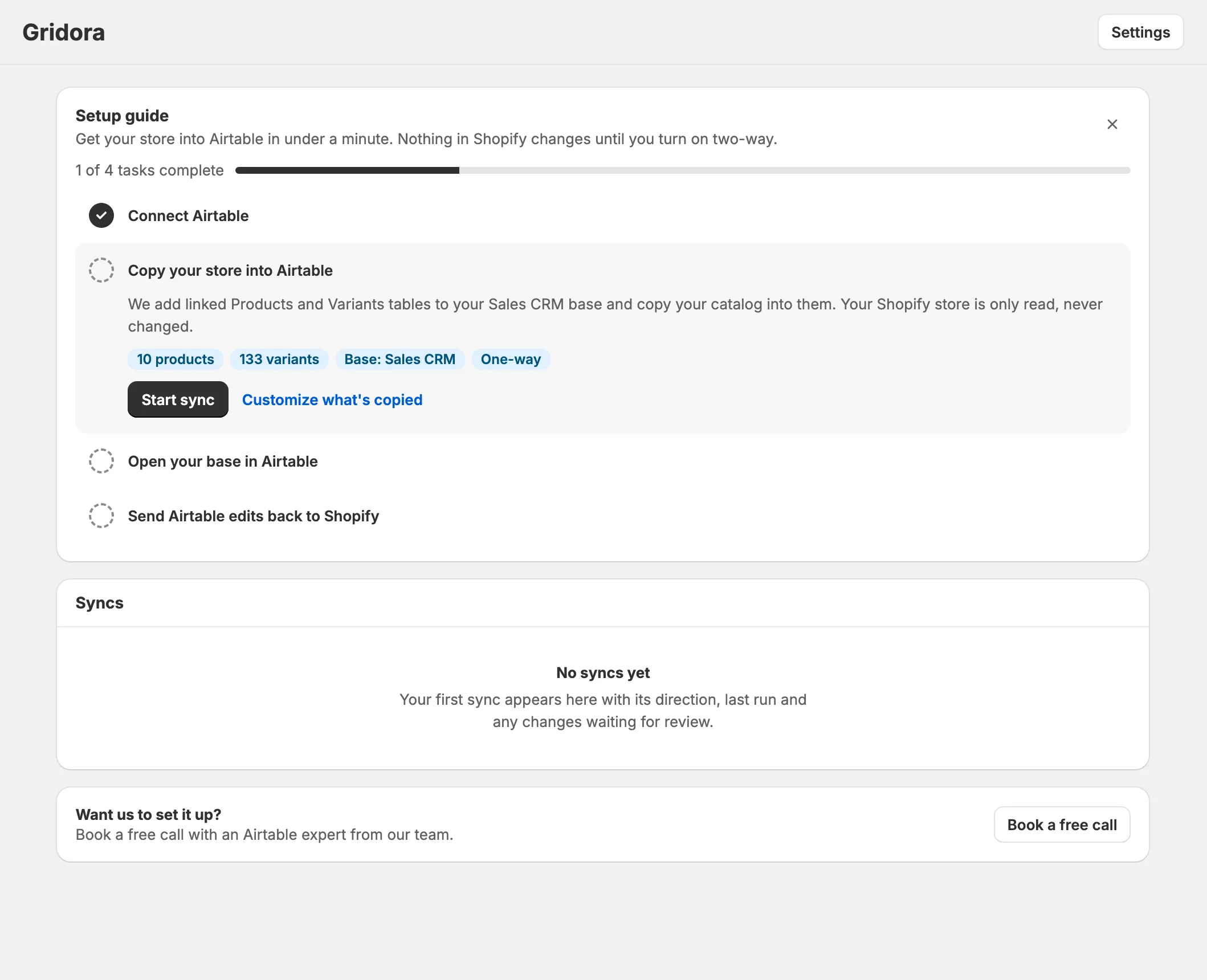
Connect Airtable. On Home, open the Setup guide and click Connect Airtable. Details in Connecting Airtable.
-
Choose what to sync. Tick the data you want and click Start copying. Each kind of data gets its own table, and you can leave the page while it copies.
-
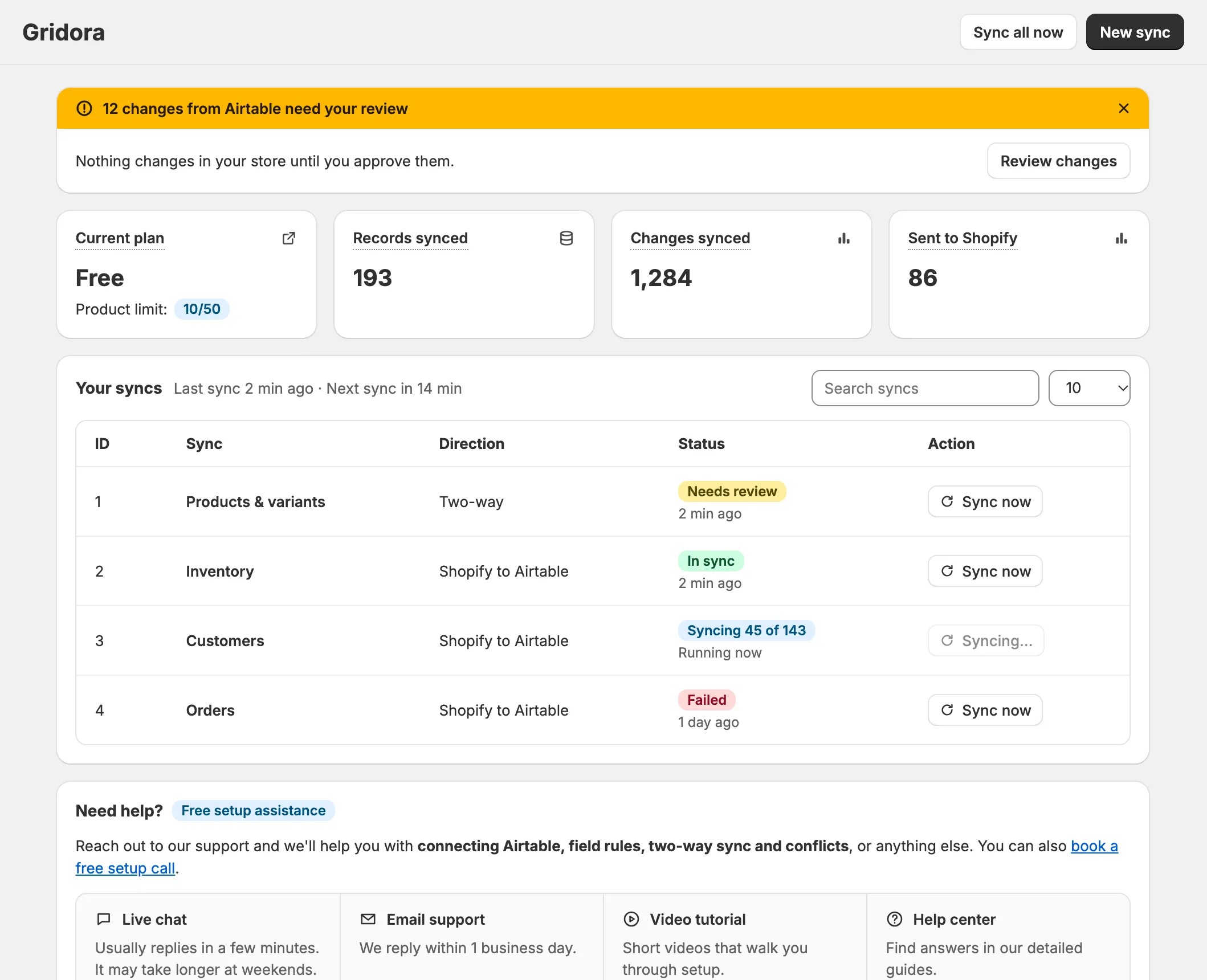
Check Home. When every row shows Done, Home shows how many records are in sync.
What happens next
Section titled “What happens next”- On Free, Gridora copies from Shopify to Airtable when you click Sync now on a data type’s page.
- From Starter, changes in Shopify reach Airtable in real time or on a schedule, and you can turn on two-way sync to edit your store from Airtable.