
Troubleshooting and issues
When one record can’t sync, every other record keeps syncing. Gridora lists the problem so you can fix it. Issues, History and the Status page are on every plan.
Fix a record that didn’t sync
Section titled “Fix a record that didn’t sync”- Home lists the record under Needs your attention, and Issues says what went wrong.
- Click Fix. Many issues are fixed in one step: Gridora adds a missing select option, saves a new SKU or changes a column’s type for you.
- Others need a change in Airtable or Shopify, such as a value Shopify doesn’t accept. Make it, and Gridora retries the record on its next sync and closes the issue.
Check the Status page
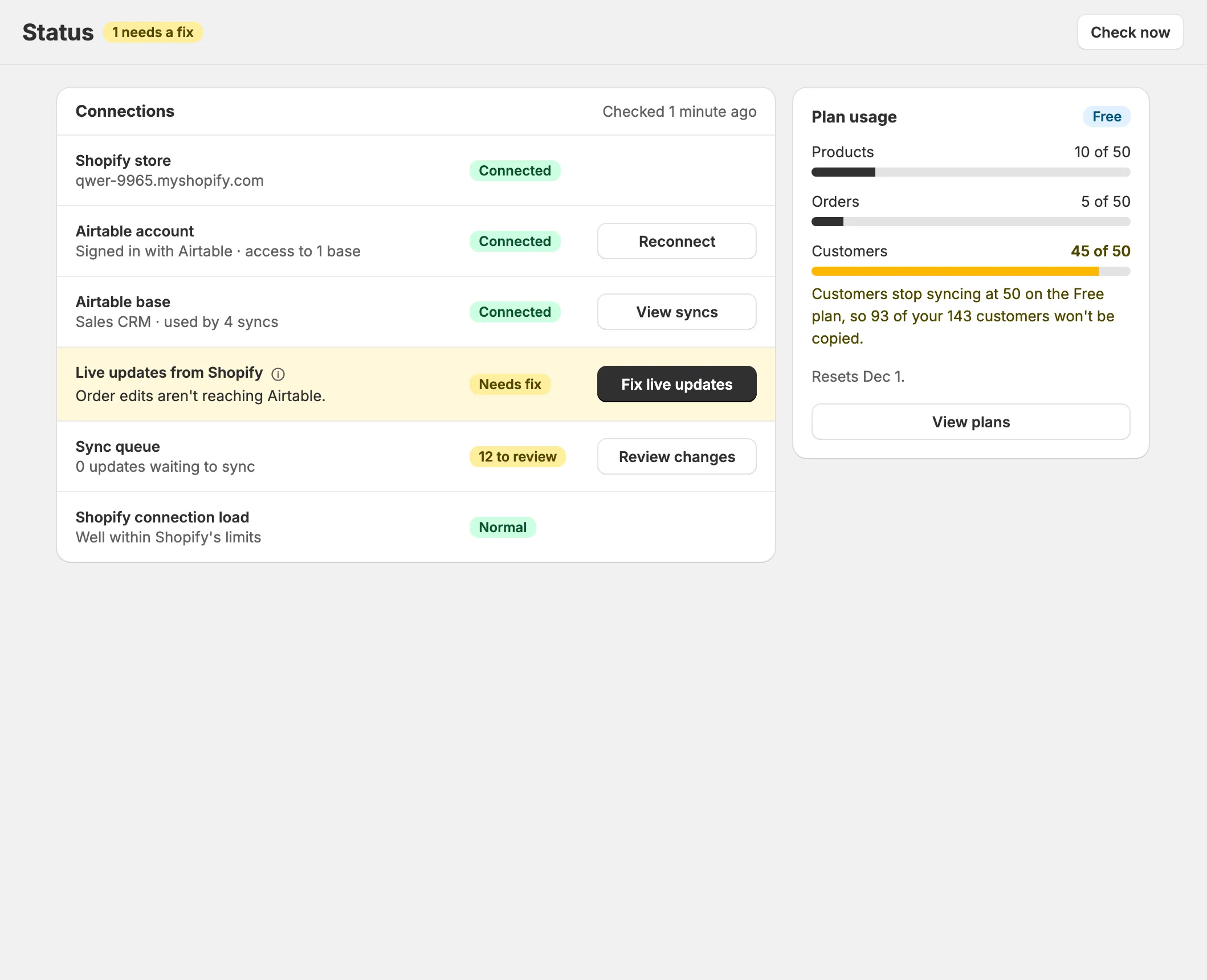
Section titled “Check the Status page”Status checks your Shopify store, Airtable account and base, live updates from Shopify, the data check, failed records and the sync queue. A failing check has a button that fixes it or takes you there, such as Reconnect, Open issues or Resume syncs. Click Check now to run the checks again.
A whole sync failed
Section titled “A whole sync failed”If a whole sync couldn’t reach Airtable or Shopify, there’s nothing to fix. It runs again at its next time, or now with Sync now on its Data page.
Common questions
Section titled “Common questions”An Airtable edit didn’t reach Shopify. Check that the field’s rule is Two-way or Airtable → Shopify (Two-way sync), then look on Review changes: the edit may be waiting, held or in conflict.
A column shows a warning. Its type doesn’t fit the field, or Airtable computes it. See Field mapping.
Data stopped syncing mid-month. You may have reached your plan’s monthly limit. See Plans and limits.
Still stuck? Real people answer Mon–Sat, 8:00–22:00 (GMT+6): use the chat in the app’s Help page or email support@invizo.io.